Local AI Lab
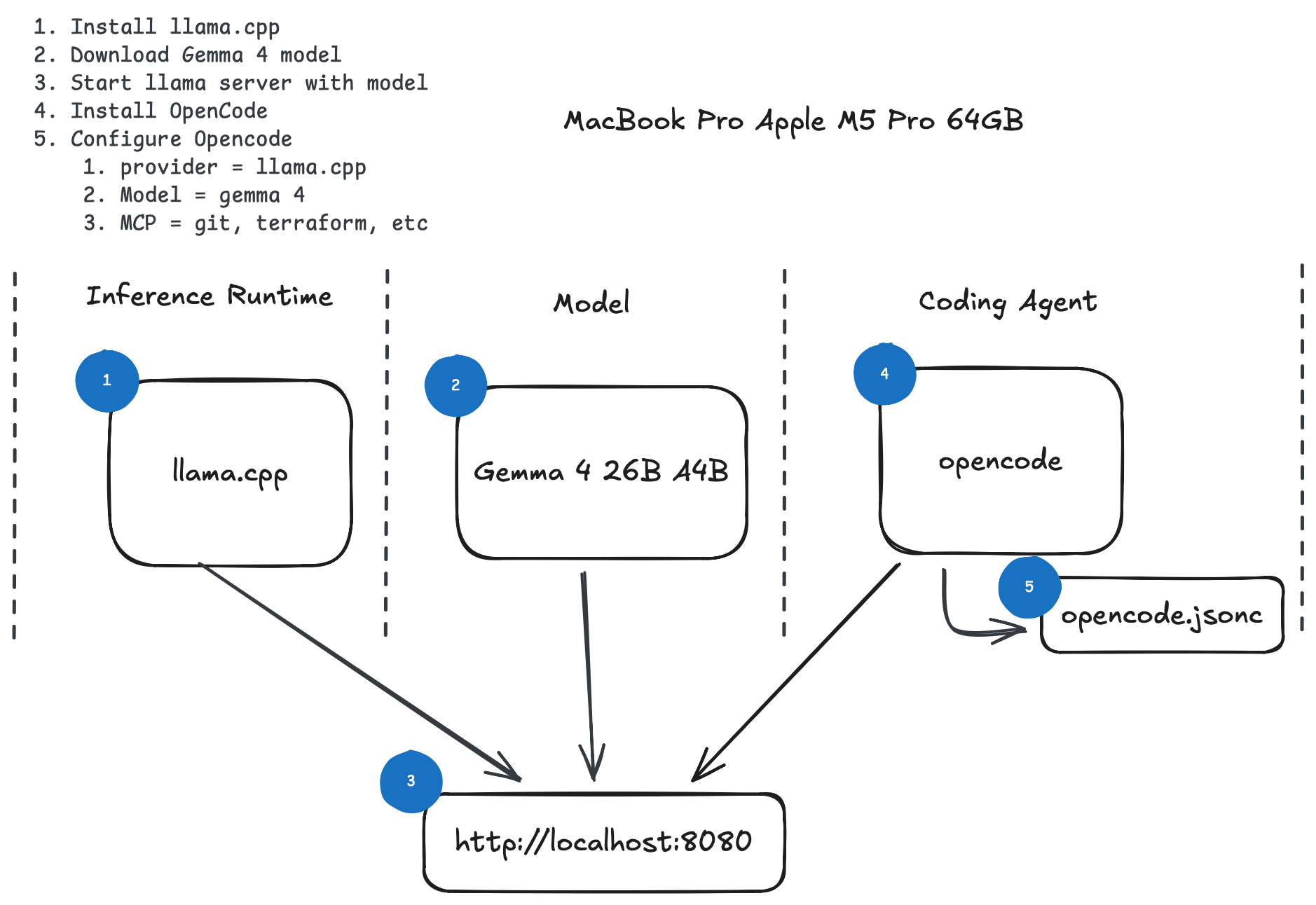
Quick Setup
https://github.com/ggml-org/llama.cpp
Install
brew install llama.cpp
That’s it. Metal support is included. Verify with:
llama-cli --version
Directory Structure
Set up a clean home for models and logs, separate from the brew-managed binaries:
mkdir -p ~/llm/models
mkdir -p ~/llm/logs
~/llm/
├── models/       # GGUF model files
├── logs/         # server logs
└── models.md     # manifest — track model source, quant, size
A minimal models.md entry:
| File                          | Source                  | Quant   | Size  |
|-------------------------------|-------------------------|---------|-------|
| llama-3.2-8b-q4_k_m.gguf     | bartowski/HF            | Q4_K_M  | 4.9GB |
Maintenance
# Update
brew upgrade llama.cpp

# Check current version
brew info llama.cpp

# Full removal (leaves ~/llm untouched)
brew uninstall llama.cpp
Running llama.cpp
Running llama.cpp as a Background Process on macOS
To ensure llama.cpp runs continuously in the background and survives system reboots, you can use launchd, the macOS service management framework.
Step 1: Create a Launch Script
First, create a shell script that executes the llama.cpp server. This helps manage environment variables and paths cleanly.
Create a file, for example, ~/scripts/run_llama.sh:
#!/bin/bash

# --- Configuration ---
LLAMA_SERVER_PATH="/path/to/your/llama-server"
MODEL_PATH="$HOME/llm/models/gemma-4-26B-A4B-it-Q4_K_M.gguf"
MMPROJ_PATH="$HOME/llm/models/mmproj-gemma-4-26_B-A4B-it-bf16.gguf"
NGL_COUNT=99
CONTEXT_SIZE=65536
HOST="0.0.0.0"
PORT=443
SSL_KEY="$HOME/llm/certs/private.pem"
SSL_CERT="$HOME/llm/certs/fullchain.pem"

# --- Build Command ---
ARGS=("-m" "$MODEL_PATH")

if [ -f "$MMPROJ_PATH" ]; then
    ARGS+=("--mmproj" "$MMPROJ_PATH")
fi

ARGS+=("-ngl" "$NGL_COUNT")
ARGS+=("--jinja")
ARGS+=("-c" "$CONTEXT_SIZE")
ARGS+=("--host" "$HOST")
ARGS+=("--port" "$PORT")

if [ -f "$SSL_KEY" ] && [ -f "$SSL_CERT" ]; then
    ARGS+=("--ssl-key-file" "$SSL_KEY")
    ARGS+=("--ssl-cert-file" "$SSL_CERT")
fi

# --- Execute ---
# Note: Using sudo may require configuring sudoers to allow this without a password
exec sudo $LLAMA_SERVER_PATH "${ARGS[@]}"
Make the script executable:
chmod +x ~/scripts/run_llama.sh
Step 2: Create a Launch Agent Configuration
Create a .plist file in ~/Library/LaunchAgents/ to define the service. For example, com.user.llamacpp.plist.
<?xml version="1.0" encoding="UTF-8"?>
<!DOCTYPE plist PUBLIC "-//Apple//DTD PLIST 1.0//EN" "http://www.apple.com/DTDs/PropertyList-1.0.dtd">
<plist version="1.0">
<dict>
    <key>Label</key>
    <string>com.user.llamacpp</string>
    <key>ProgramArguments</key>
    <array>
        <string>/Users/YOUR_USERNAME/scripts/run_llama.sh</string>
    </array>
    <key>RunAtLoad</key>
    <true/>
    <key>KeepAlive</key>
    <true/>
    <key>StandardOutPath</key>
    <string>/tmp/llama_cpp.out.log</string>
    <key>StandardErrorPath</key>
    <string>/tmp/llama_cpp.err.log</string>
</dict>
</plist>
Note: Replace YOUR_USERNAME with your actual macOS username.
Step 3: Load and Start the Service
Use launchctl to load the agent into the session:
launchctl load ~/Library/LaunchAgents/com.user.llamacorp.plist
The service will now start automatically when you log in and will restart if it crashes.
Management Commands
Check if the service is running
launchctl list | grep com.user.llamacpp
Stop the service
launchctl unload ~/Library/LaunchAgents/com.user.llamacpp.plist
View Logs
If something goes wrong, check the logs defined in the .plist:
tail -f /tmp/llama_cpp.err.log